VR180 VIEWING GUIDE

How to Watch VR180

Step-by-step viewing instructions for iPhone, smartphone VR goggles, and Meta Quest 3.

ABOUT

What is VR180?

VR180 is a stereoscopic video format that lets you view the 180-degree space in front of you in 3D.
Separate images are prepared for the left and right eyes to reproduce binocular disparity.
This creates a stronger sense of distance, depth, and three-dimensionality than ordinary video.

With a headset such as an iPhone + VR goggles or Meta Quest 3, the view follows the direction of your head.
You can also watch on an iPhone alone like a normal video when using VRPlayer.

01

IPHONE

Watching on an iPhone Only

2

Prepare the Download Destination

Set your iPhone so downloaded content is saved inside the VRPlayer app.
First open iPhone Settings and go to Apps → Safari.
Then follow the steps below.

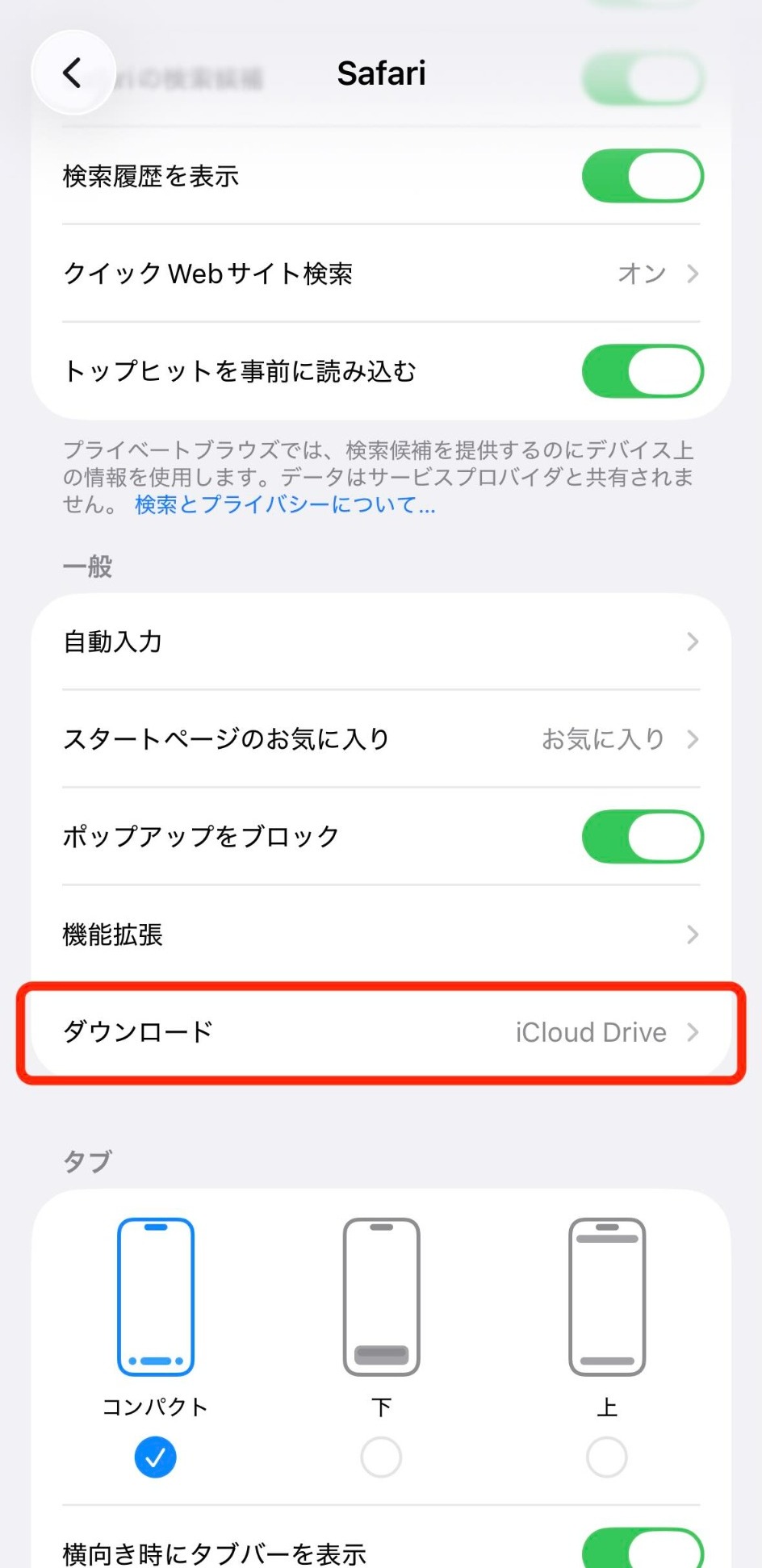
① Open “Downloads” under General
iPhone Safari settings showing Downloads under General
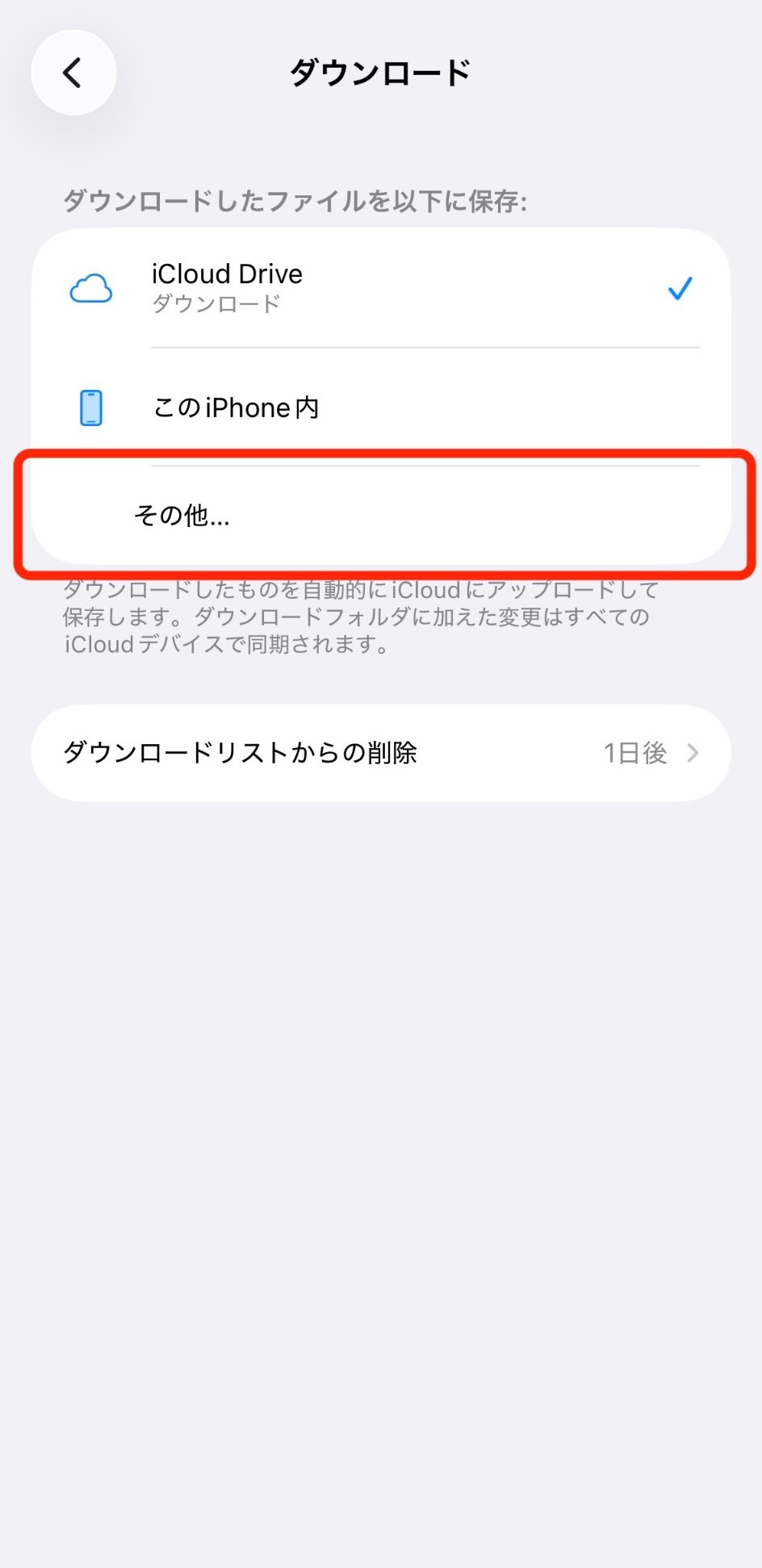
② Tap “Other…”
iPhone download destination screen showing Other
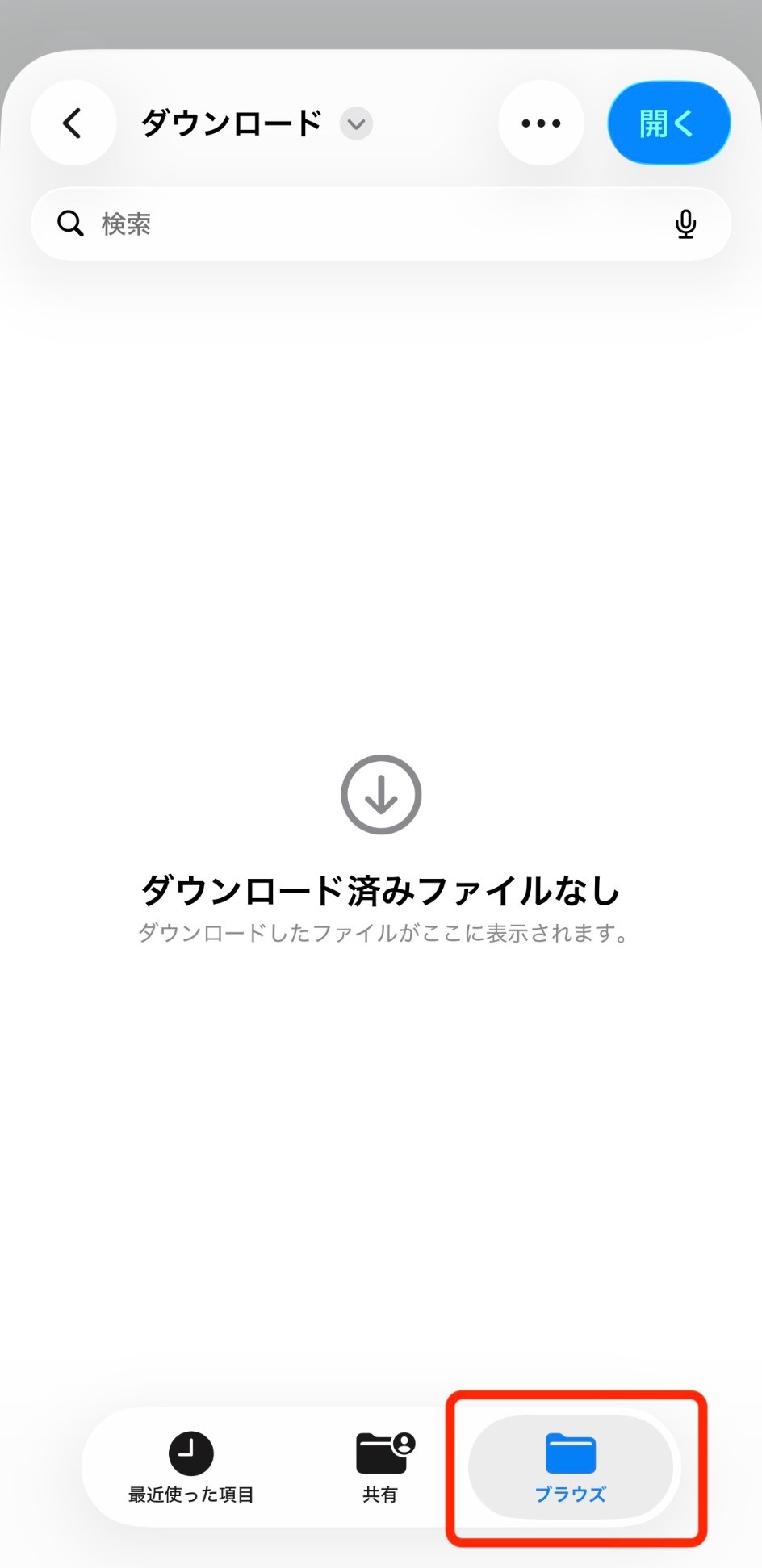
③ Tap “Browse”
iPhone file location screen showing Browse
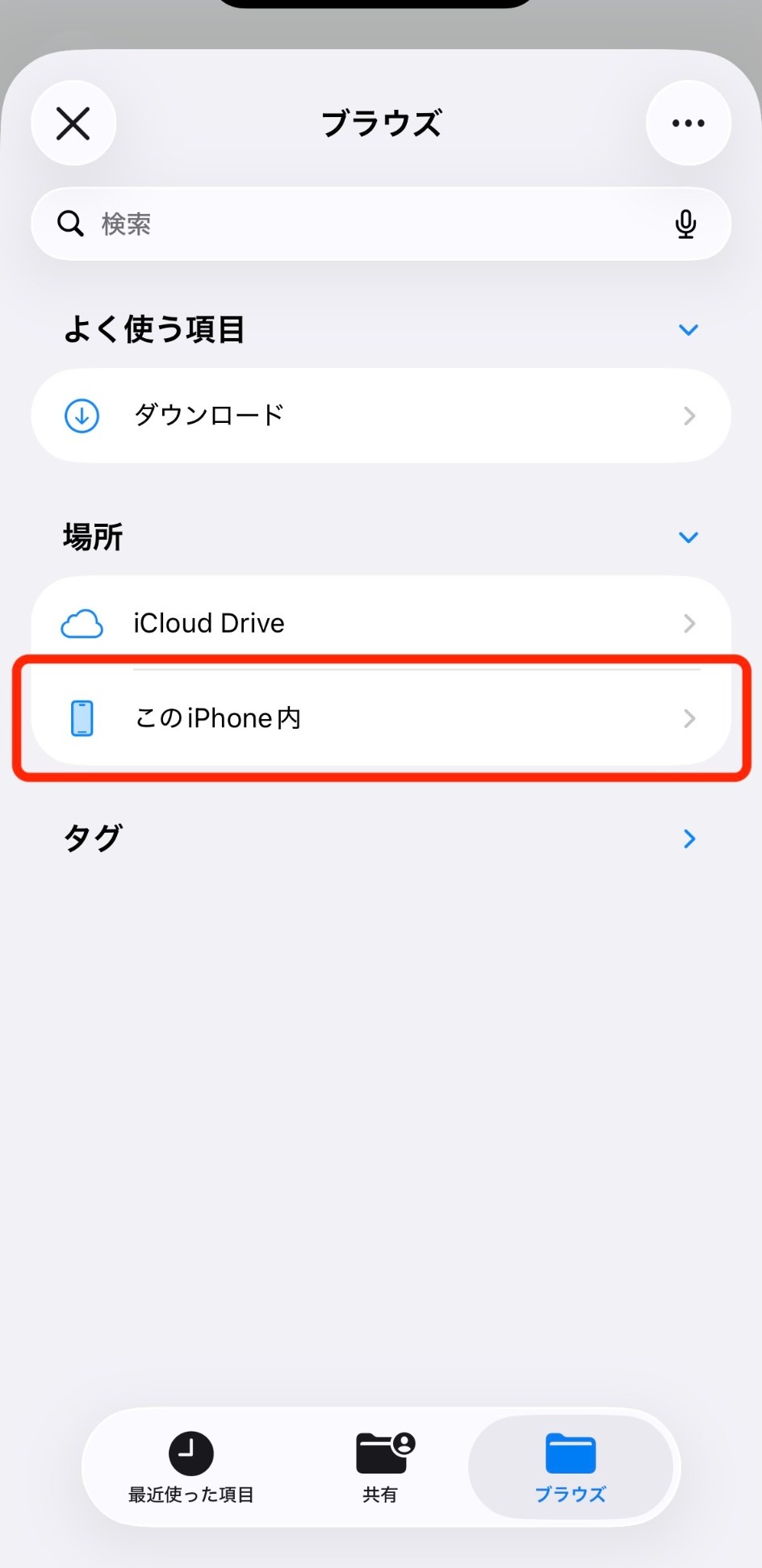
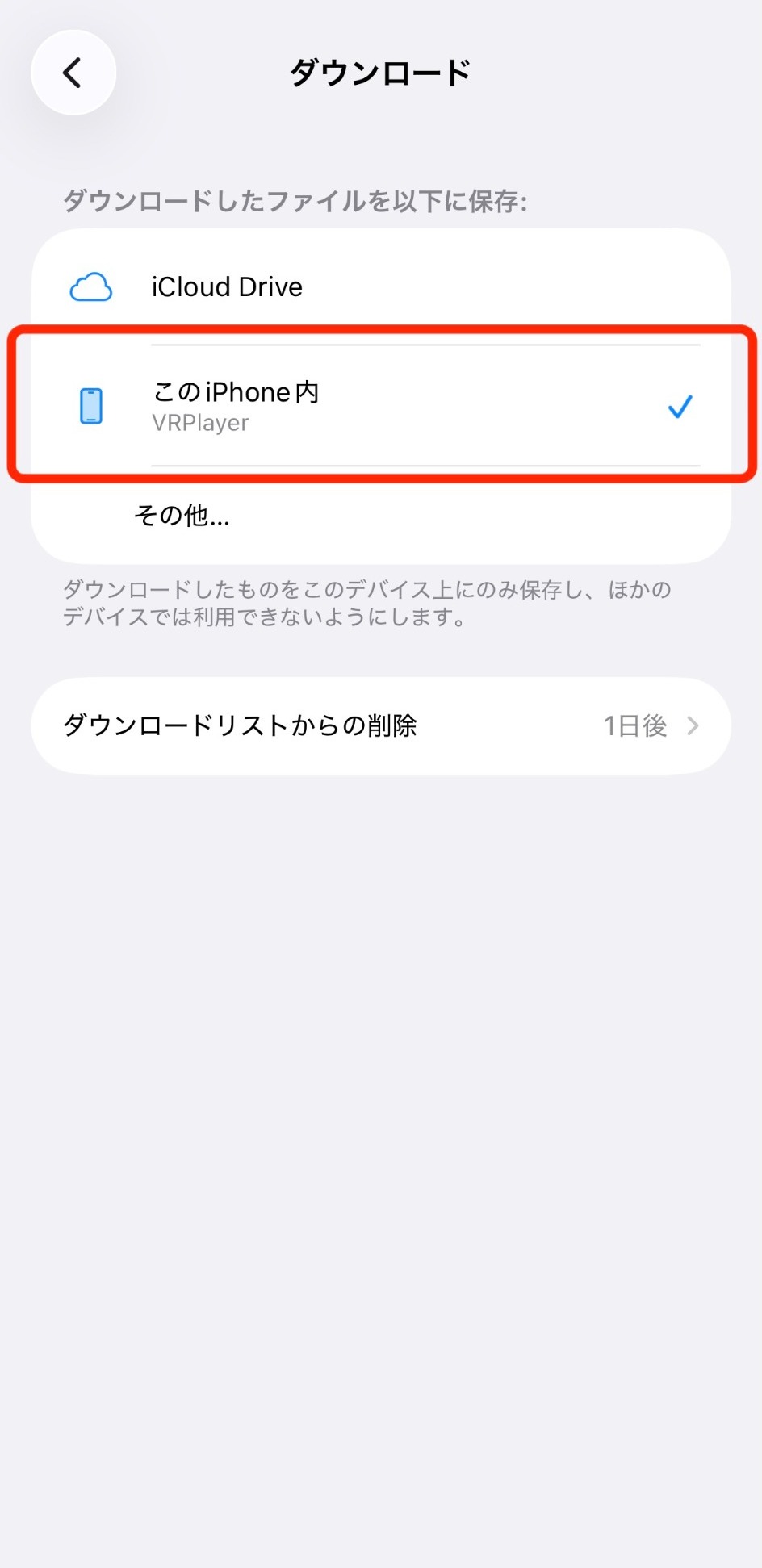
④ Under Locations, tap “On My iPhone”
iPhone Locations screen showing On My iPhone
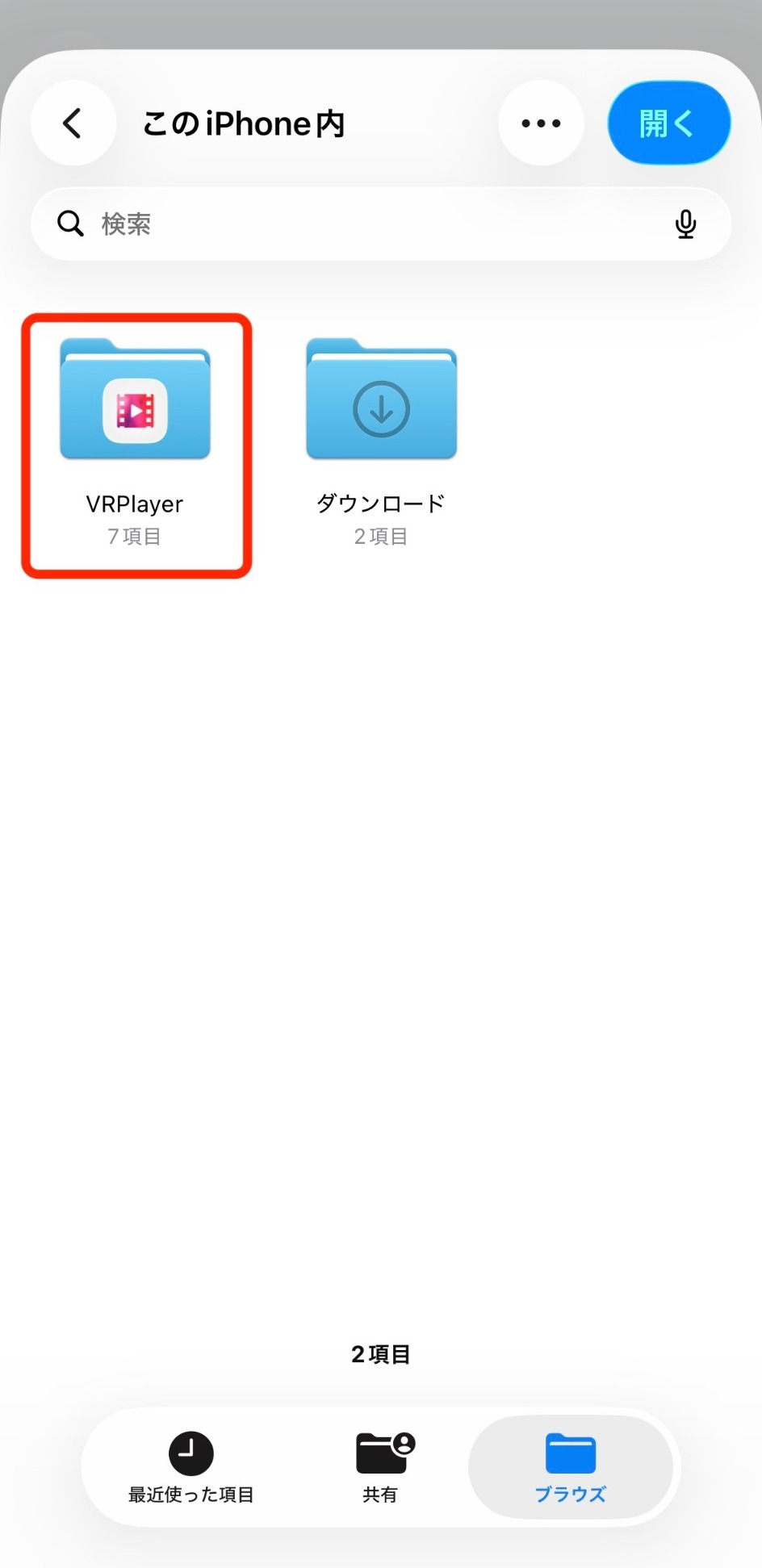
⑤ Tap “VRPlayer”
On My iPhone screen showing the VRPlayer folder
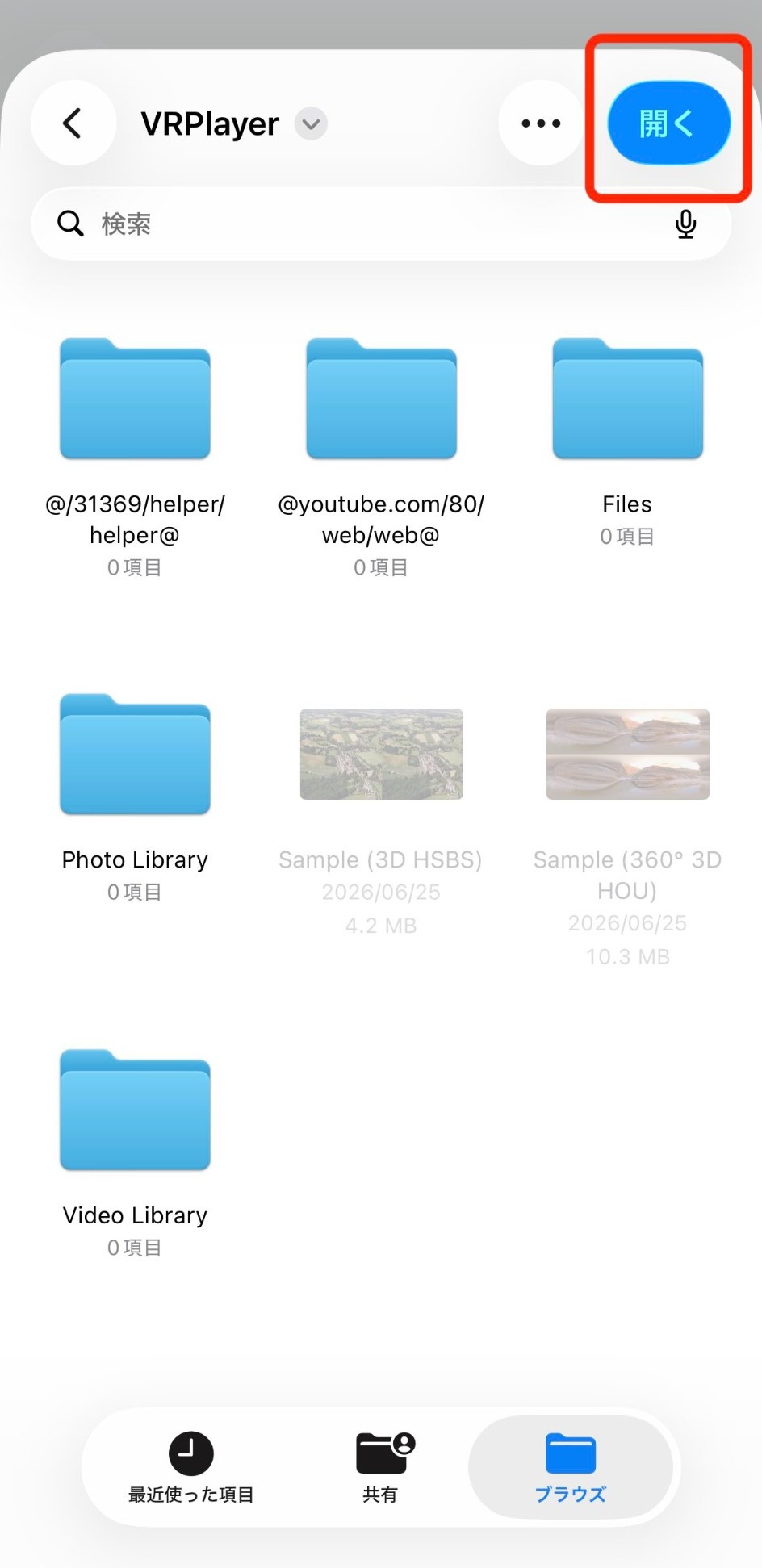
⑥ Tap “Open”
VRPlayer folder selected as the download destination
⑦ If “Downloads” shows this state, the setup is complete.
Safari Downloads setting with VRPlayer selected

When setup is complete, close the Settings app.

4

Watch in the VRPlayer App

Open VRPlayer and tap the downloaded content in the list to play it.
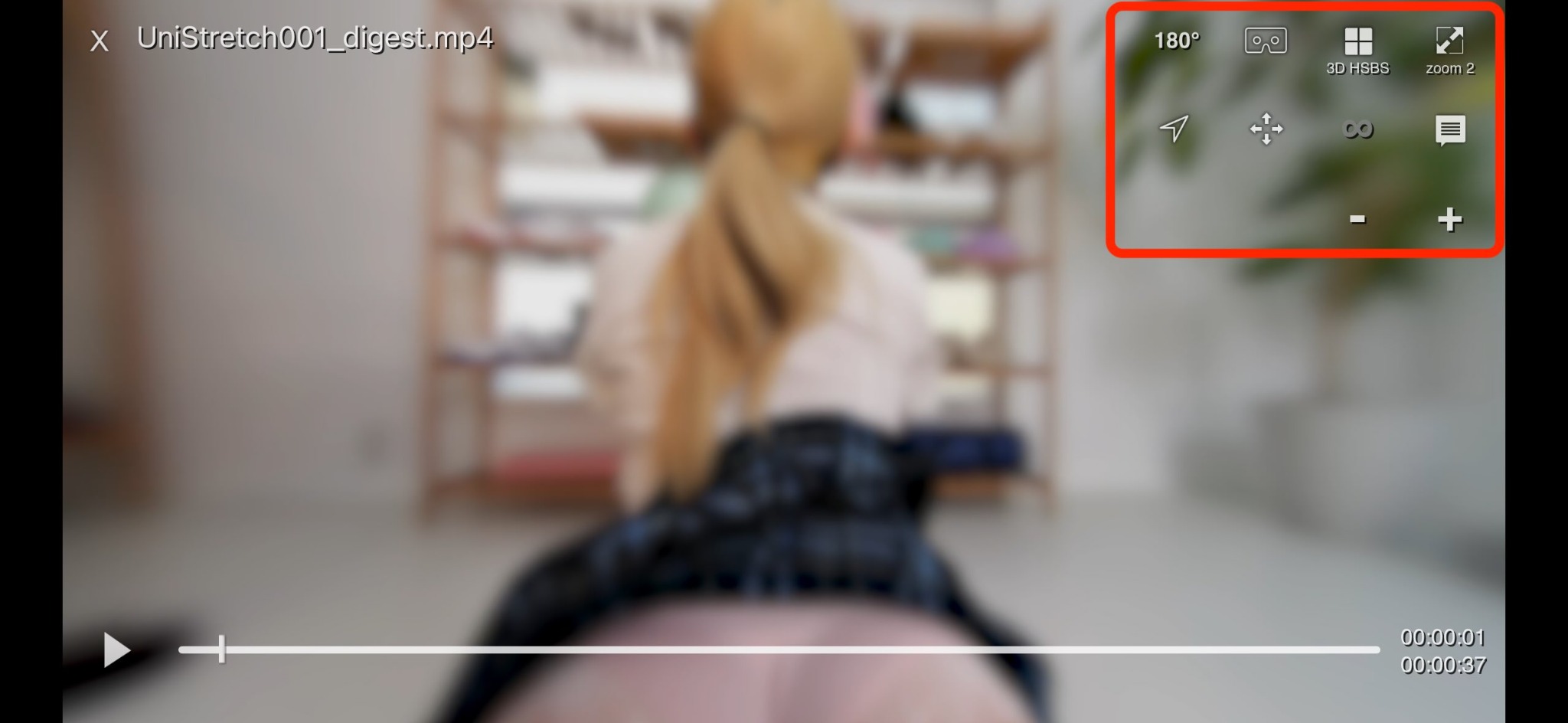
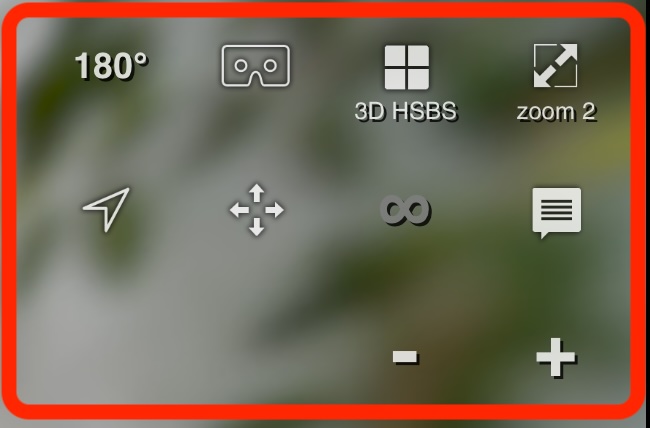
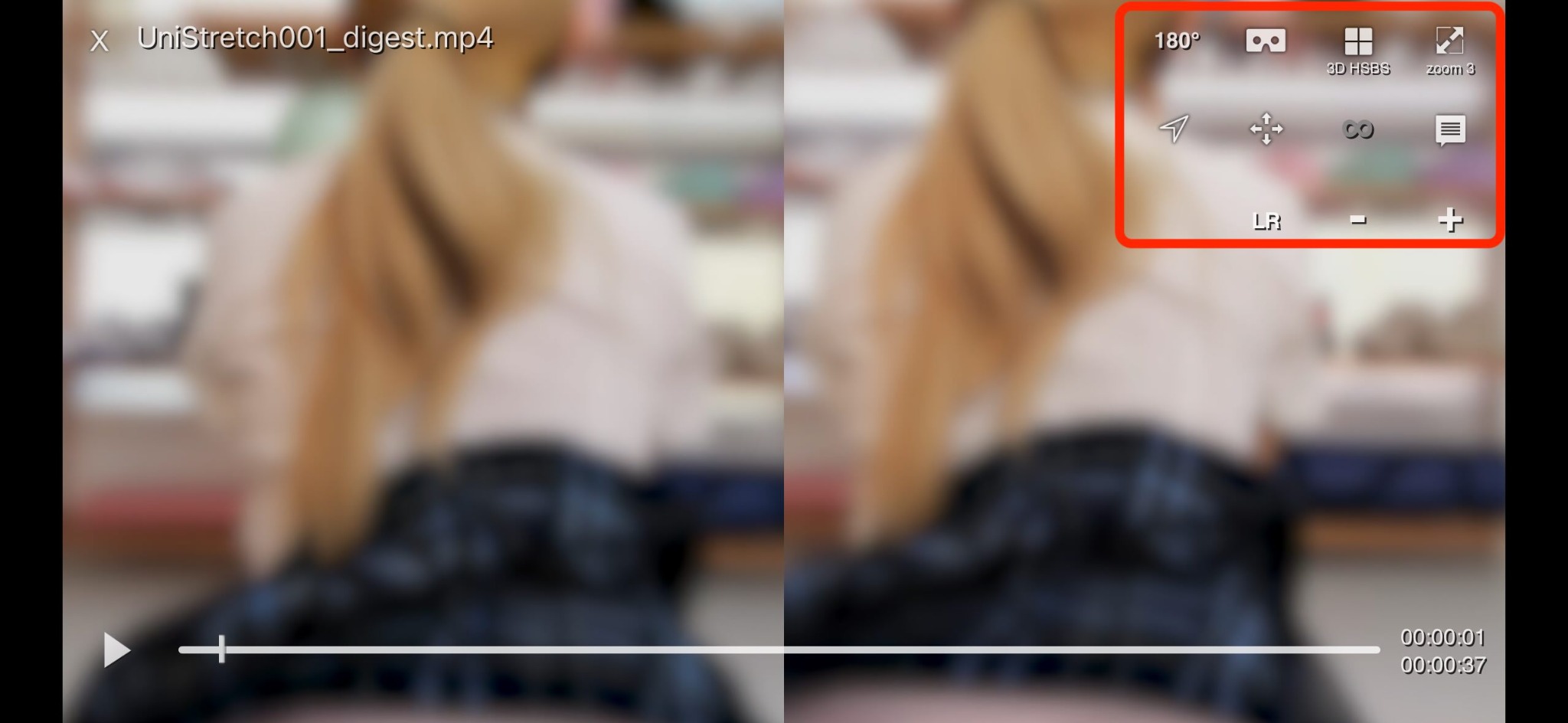
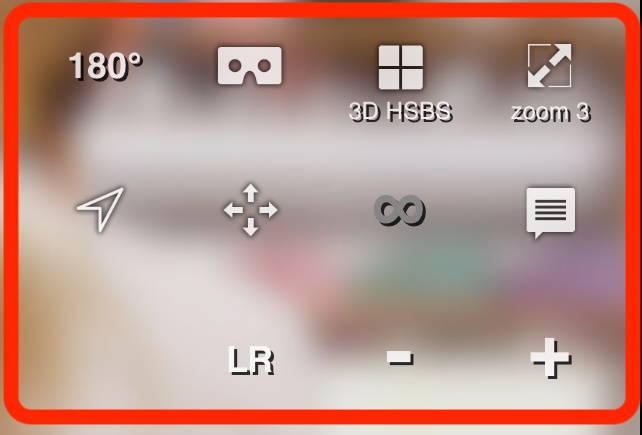
Tap the icons until they match the settings shown below.

VRPlayer settings for iPhone-only viewing
Settings for iPhone-only viewing
Close-up of VRPlayer settings for iPhone-only viewing
Close-up of the settings area
Recenter arrow button

Changing the iPhone orientation changes the direction and area you are viewing.
Tap the recenter button shown at left to bring the view back to the front.
A zoom setting around 2–3 usually feels natural.

※ If a tutorial appears when launching, playing, or tapping an icon, review it and continue.

5

Watch Purchased Content

If the sample plays correctly, open the store in Safari, purchase the content, download it, and watch it in the same way.

02

IPHONE + VR GOGGLES

Watching with iPhone + VR Goggles

1

Prepare VR Goggles

Use smartphone VR goggles that fit the size of your iPhone and case.
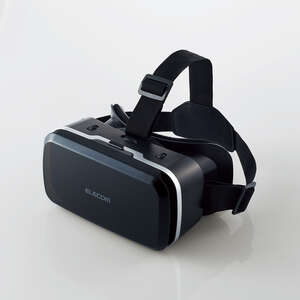
Our suggested model is the ELECOM VRG-M02BK.
It can be used with an iPhone Pro Max while a standard case is still attached.

ELECOM VRG-M02BK VR goggles
ELECOM VRG-M02BK VR Goggles Standard smartphone VR goggles View on Amazon Japan →
2

Viewing Flow

The basic steps are the same as “iPhone only.”
Tap the icons until they match the settings shown below.

VRPlayer settings for iPhone with VR goggles
Settings for VR-goggle viewing
Close-up of VRPlayer settings for VR-goggle viewing
Close-up of the settings area
Recenter arrow button

Changing your head direction changes the direction and area you are viewing.
Tap the recenter button shown at left to bring the view back to the front.
A zoom setting around 2–3 usually feels natural.

03

META QUEST 3

Watching on Meta Quest 3

1

Viewing Apps

You can watch downloaded content simply by opening it from the Files app.
You can also use the VR video player “DeoVR Classic - VR Video Player.”